

Creating a token lock
Create a token or LP lock on Robinhood Chain with Titan Locker: pick the token, set the amount from your balance, choose an unlock date, pay 0.025 ETH or 3%, then approve and lock — about a minute, two wallet confirmations.
Updated 3 min read
On this page5 sections
To lock tokens on Robinhood Chain, open the Create page, choose “Token / LP lock”, paste the token's contract address, enter the amount, pick an unlock date, choose how to pay the fee, and press “Approve & lock tokens”. It takes two wallet confirmations — approve, then lock — and the new lock gets its own public certificate page.
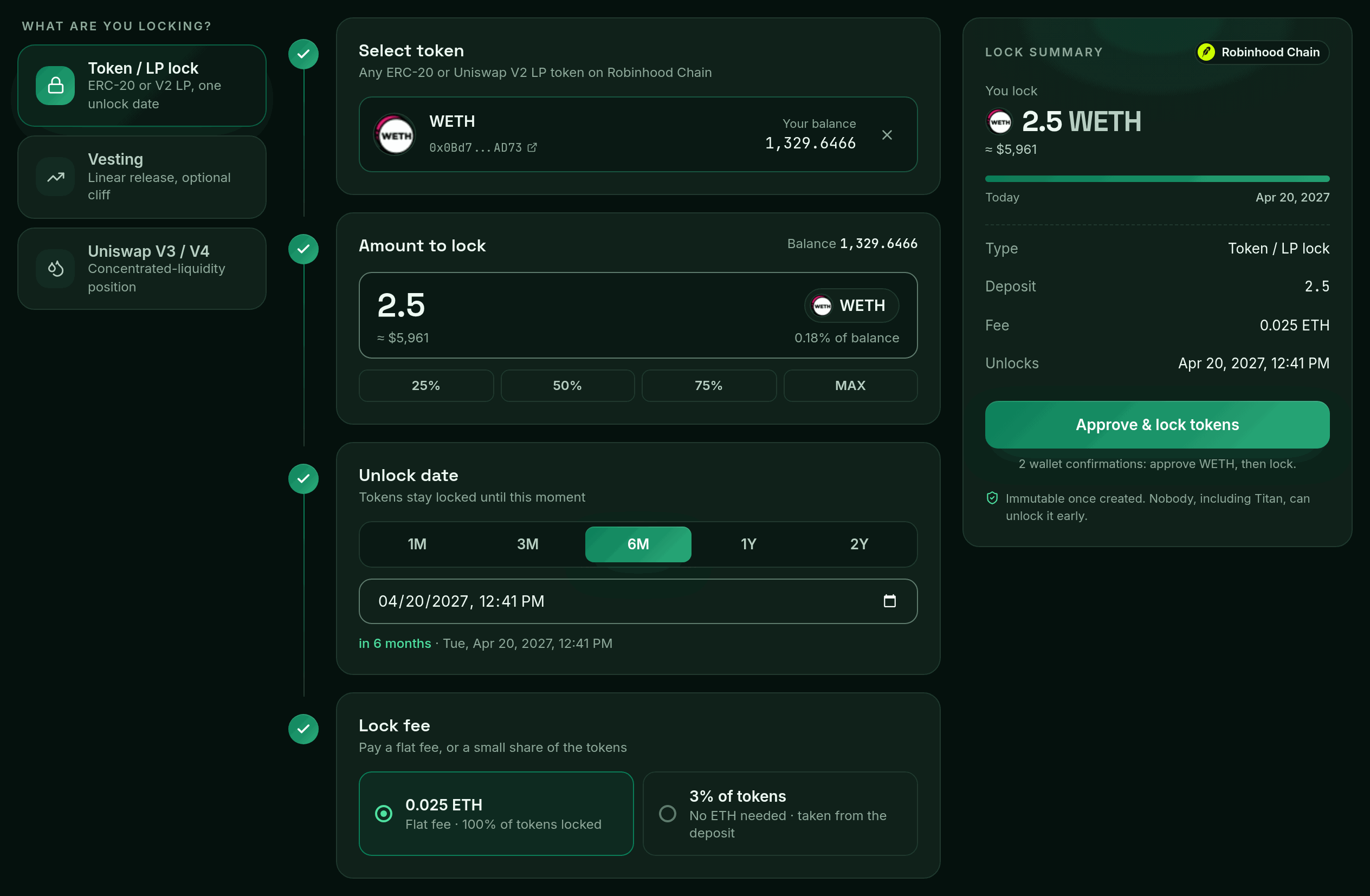
The Create page asks “What are you locking?” first: Token / LP lock (this page), Vesting (see Creating a vesting schedule) or Uniswap V3 / V4 (see Locking a Uniswap V3/V4 position). The steps are numbered on one page, each opening up once the one before is done, and a Lock summary beside them shows exactly what will be locked before you sign anything.
1. Select token
Paste the ERC-20 or LP token's contract address (the Paste button reads it from your clipboard). Once it resolves, a card shows the token's name, symbol, logo, a link to it on the block explorer, and your balance. Use the × to pick a different token.
2. Amount
Type the amount, or use 25%, 50%, 75% or MAX of your balance — your balance is shown right above the field. The field also shows the approximate USD value and what share of your balance it is, and warns you if you enter more than you hold. This is the amount you deposit, before any in-kind fee.
3. Unlock date
Pick a preset — 1M, 3M, 6M, 1Y or 2Y from now — or set an exact date and time, down to the minute. The date shown underneath (“in 6 months · Tue, Apr 20, 2027, 12:33 PM”) is in your local time zone, and the Lock summary draws a bar from today to the unlock date.
4. Lock fee
- 0.025 ETH flat fee — 100% of the deposited tokens get locked.
- 3% of tokens — no ETH needed; 3% is deducted from the deposit and the rest is locked.
5. Review and lock
The Lock summary lists the token, deposit, fee, the final amount locked and the unlock date. Its button walks you through whatever is needed, one thing at a time: “Connect wallet”, then “Switch to Robinhood Chain” if your wallet is on another network, then “Approve & lock tokens” (or just “Lock tokens” if this token is already approved). Until the form is complete, the button says what's missing — “Enter an amount”, “Pick an unlock date”.
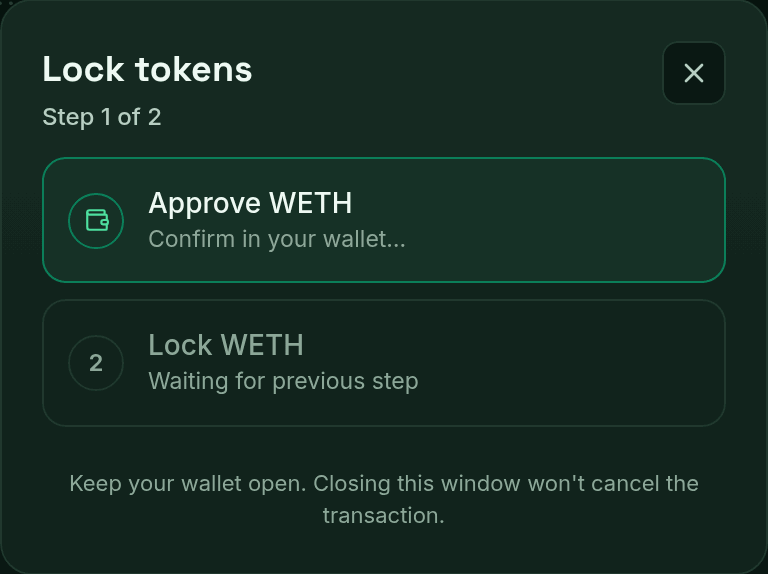
Pressing it opens a progress window that tracks each transaction: “Step 1 of 2 · Approve”, then “Step 2 of 2 · Lock”. Each step shows whether it's waiting for your wallet, submitted, or confirmed, with a link to the transaction. The lock step only starts once the approval is confirmed on-chain, so it can't fail for a missing allowance. After the lock confirms, the window shows “Publishing your lock certificate…” for a few seconds while Titan's indexer picks it up, then a “View lock” button that opens the new certificate.
- If a step fails, the window says why in plain words and offers “Try step 2 again”, continuing from where it stopped — an approval that already went through is never repeated.
- Cancelling in your wallet just stops; nothing is sent.
- Closing the window doesn't cancel anything. The transaction keeps going, a notification reports how it ends, and the button changes to “In progress – view status” so you can reopen it.